
Access It! Gets a Modernized Interface
.webp)
Access It! Gets a Modernized Interface
Access It! is getting a modernized interface. Not a new product, not a rebuild from the ground up, but a redesigned experience layered on the same access control platform your team already runs. Same platform. Same brand. Same workflows.
Dated, information-dense screens slow operators down. The desktop client's interface was last refreshed in 2016, the web client's in 2019, and that's the problem this refresh was built to solve. It replaces those screens with a faster, more intuitive experience, so teams can find information and complete daily tasks more efficiently, with workflows preserved and minimal retraining. If you onboard employees, watch alarms, or run a lockdown, this update changes how those tasks feel. It doesn't change what they require of you to relearn.
This post walks through what's changing, screen by screen, with before and after looks at the workflows your team uses most: onboarding a new employee, monitoring live events, and locking down a site.
What's Changing, at a Glance
Four changes are driving the refresh:
- Modernized UI. Cleaner layouts, refreshed tables and icons, and a unified design across desktop and web, with selectable light and dark modes.
- Updated table grids. Cramped inline panels are replaced with a clean, scannable grid view of every list item, from Cardholders to Alarms.
- Powerful sort and filter. Per-column filters, search, Boolean logic, and drag-and-drop groupings help you find what matters, faster.
- System insights dashboard. A single view surfacing live warnings, key counts, and system health at a glance.
Beyond those four, a few workflow-level changes stand out: cardholder onboarding moves through one guided flow instead of separate windows and dialogs, lockdown confirmation is easier to see and verify the moment it happens, and configuration screens like panel and controller setup get the same visual treatment.
Same robust product. Modernized experience. Nothing else to relearn.
Onboarding a New Employee: One Flow, Start to Finish
Onboarding starts right from the dashboard. Open Cardholders and add a new record.
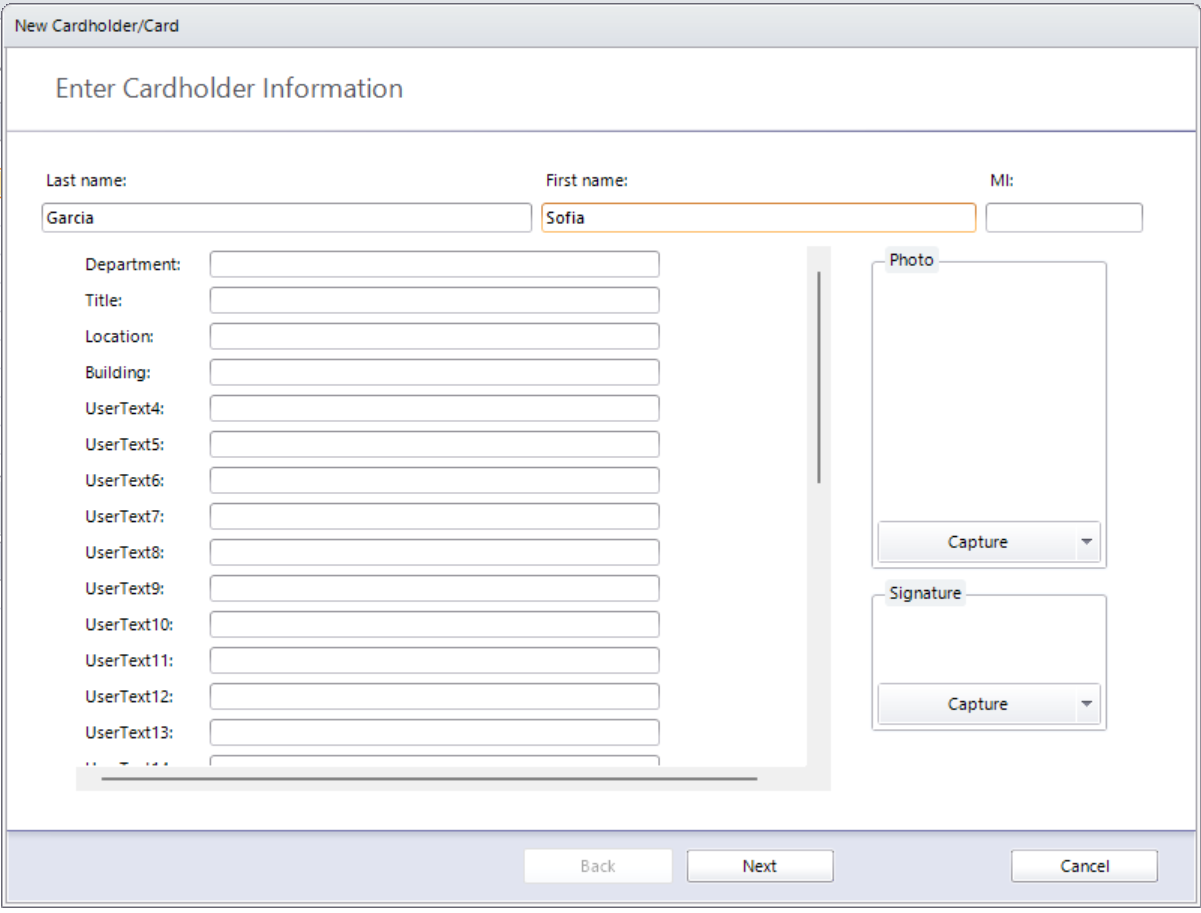
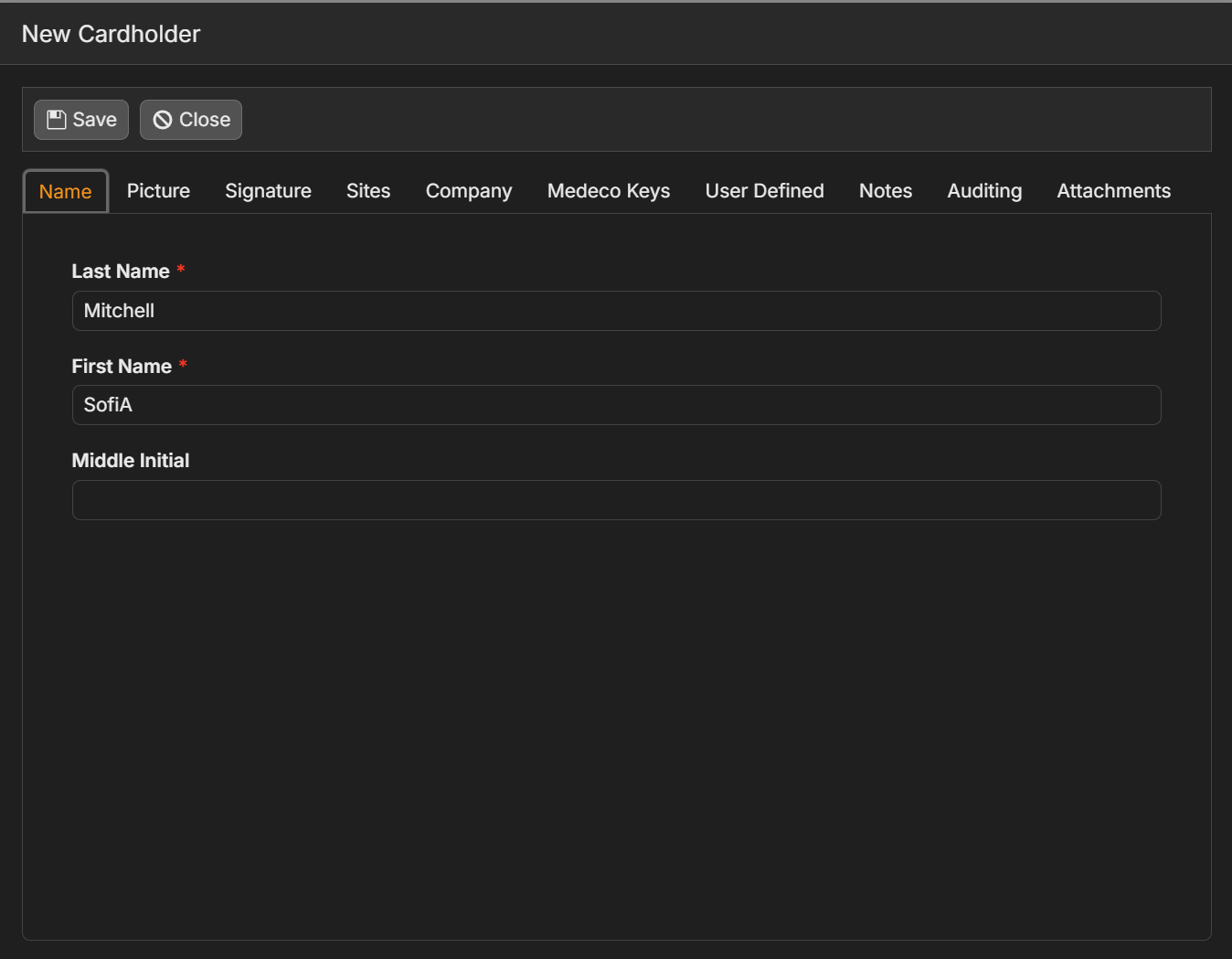
In the modernized flow, you enter the basics, upload a photo, crop it to a clean headshot, and capture a signature if your site requires one. Assign the site, then add or remove fields to match exactly what your organization tracks for each employee. Add notes to the record if anything needs documenting.
Save the record, search to confirm it's there, then add a new card: select the card type, enter the details, and set a PIN manually or auto-assign one. Add any exemptions the card needs, along with card-specific notes.
Assign access. In many cases that means 24/7 access to every reader in the building, but you can customize your own access levels, or assign access level groups for more complex deployments.
Save, and the new employee is onboarded: record, card, and access, all in one workflow.
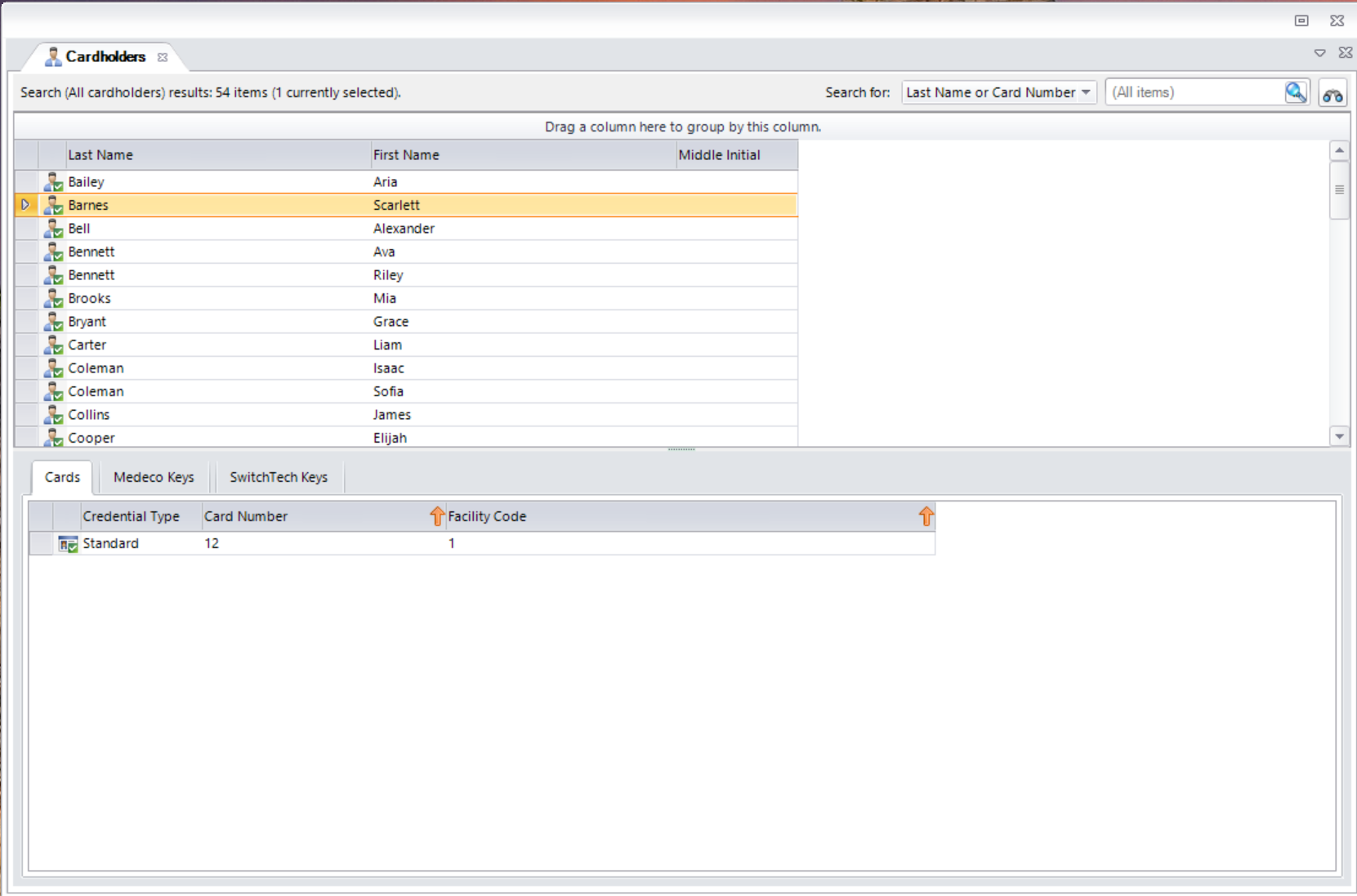
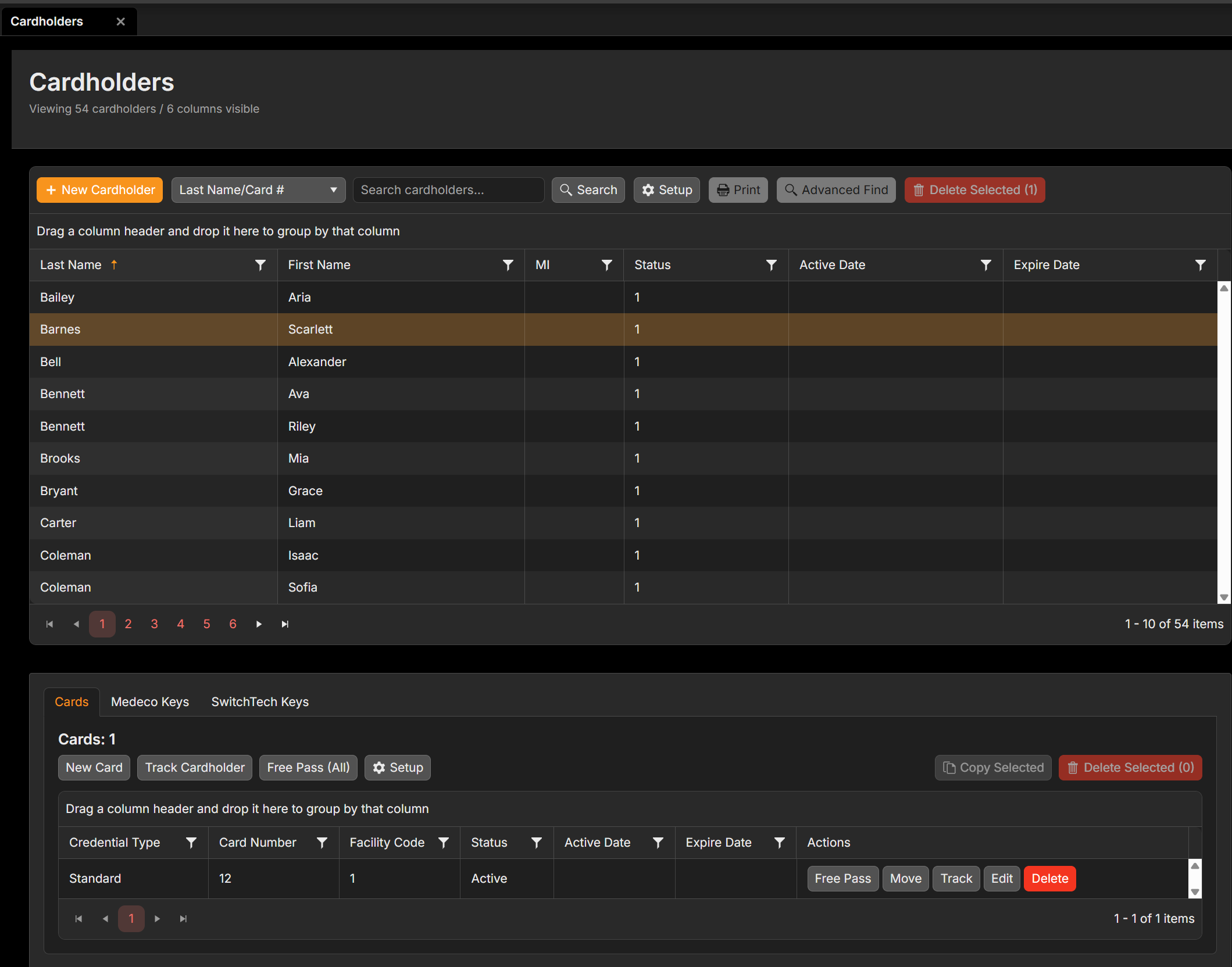
The Cardholders list carries the same modernization. The cramped inline panel of the legacy grid is replaced with a clean, scannable grid view of every list item. The underlying data (cards, Medeco keys, SwitchTech keys) is the same. It's just easier to scan and act on.
Monitoring Live Events in Real Time
Monitoring live events starts with two views: the Alarms window for critical activity, and the Events window for everything else.
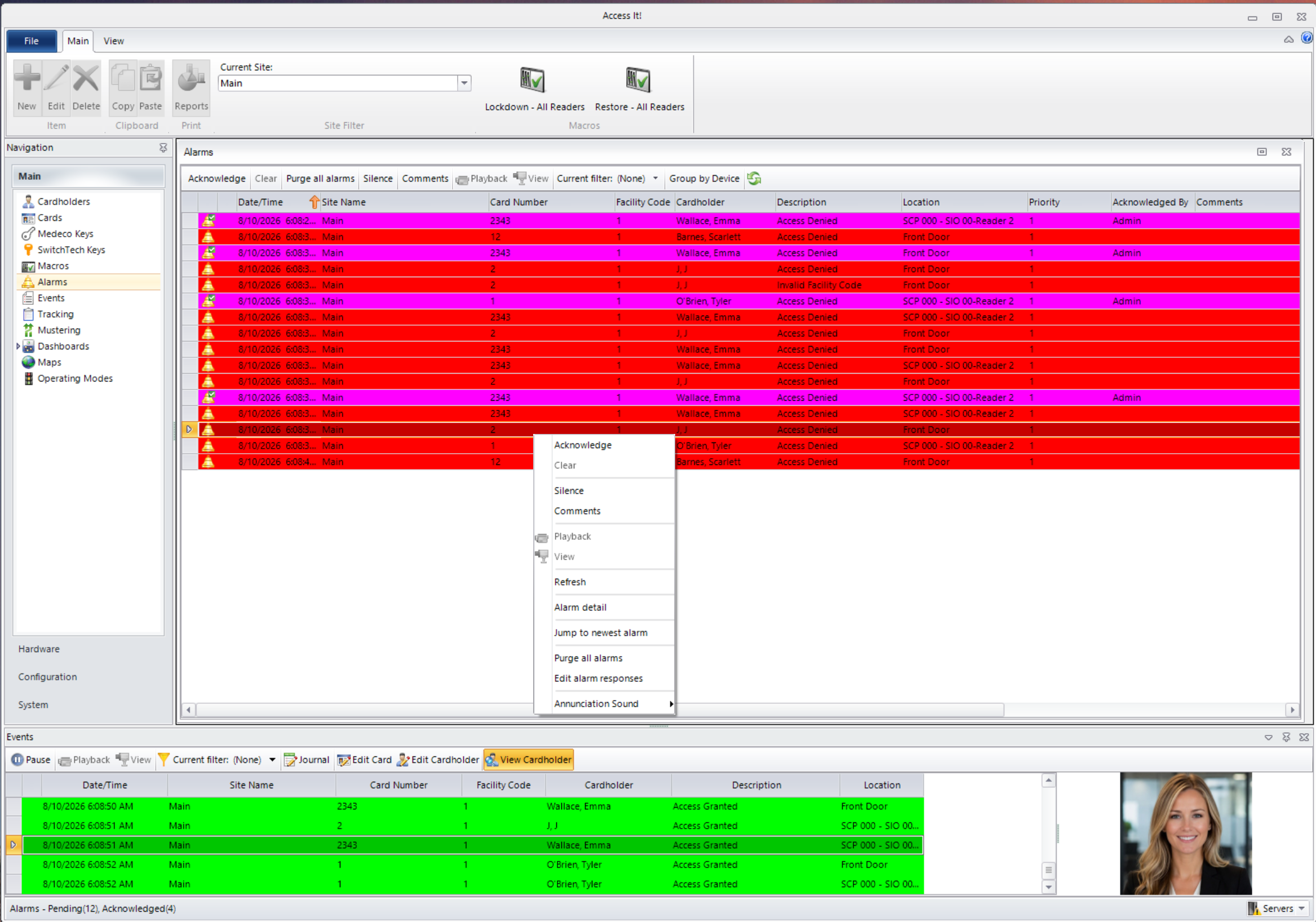
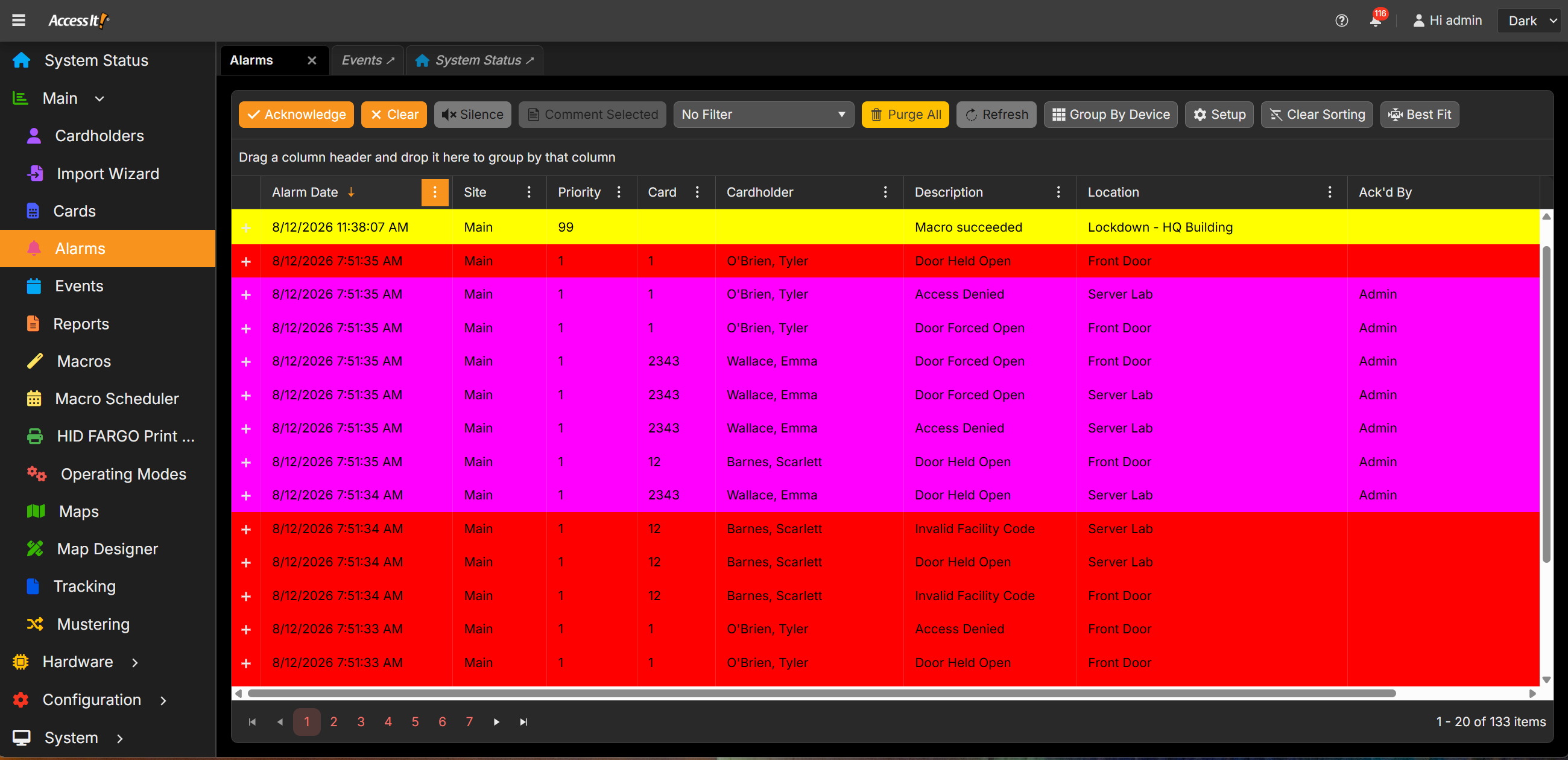
As new alarms come in, they slide straight to the top of the panel, sorted by your criteria. Customize your columns, drag to reorder, and sort by priority or by alarm date. Group by device or by location to focus on a specific area of your system. Per-column filters, search, Boolean logic, and drag-and-drop groupings mean the alarms that matter surface faster, without digging through the ones that don't.
Click any alarm to pull up cardholder details and photo, right there, without leaving the panel. Right-click, or use the toolbar, to silence the alert, add a note, acknowledge, clear, or purge the queue, all permission protected and logged.
The Events window works the same way for everyday activity like access grants: sort, filter, and customize columns just like Alarms.
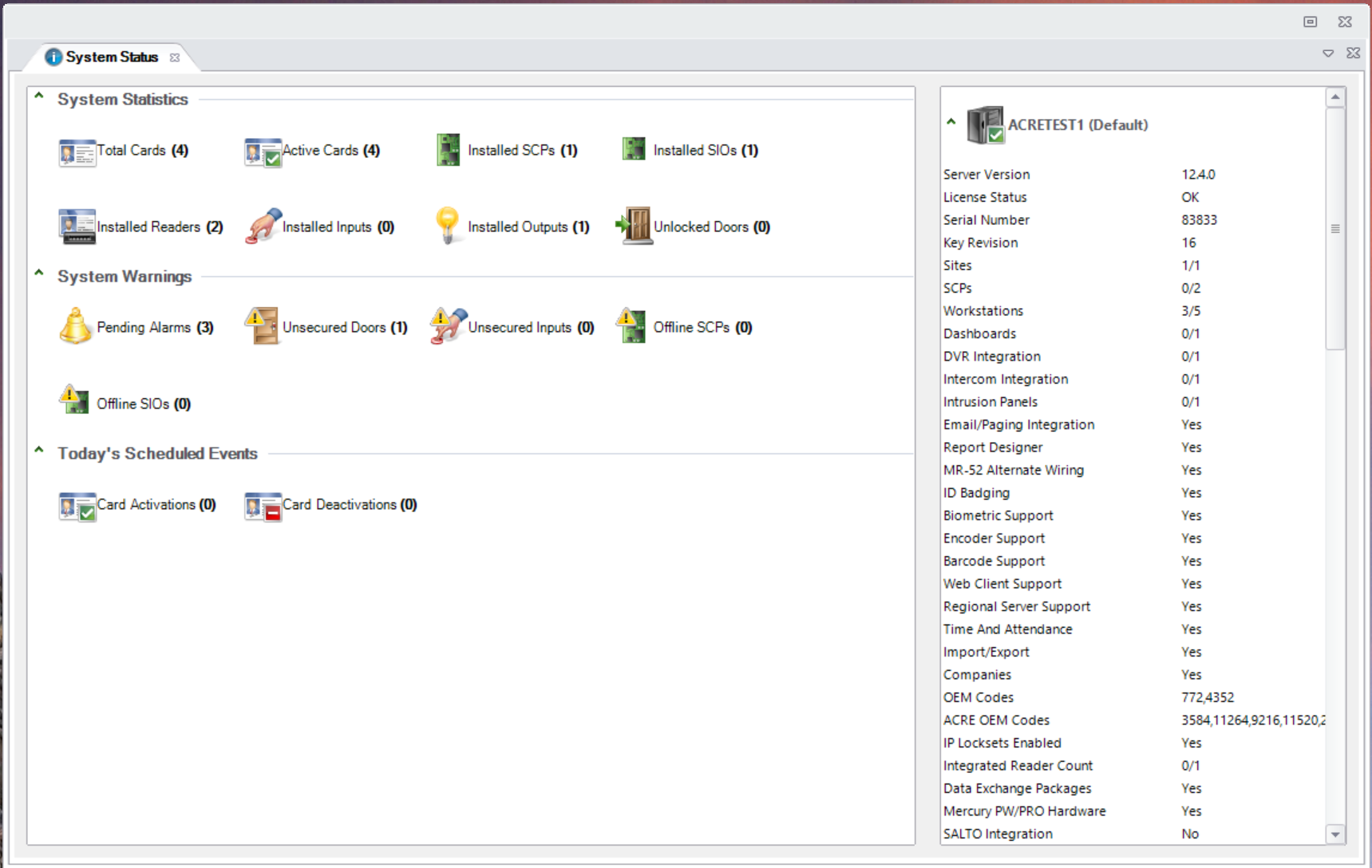
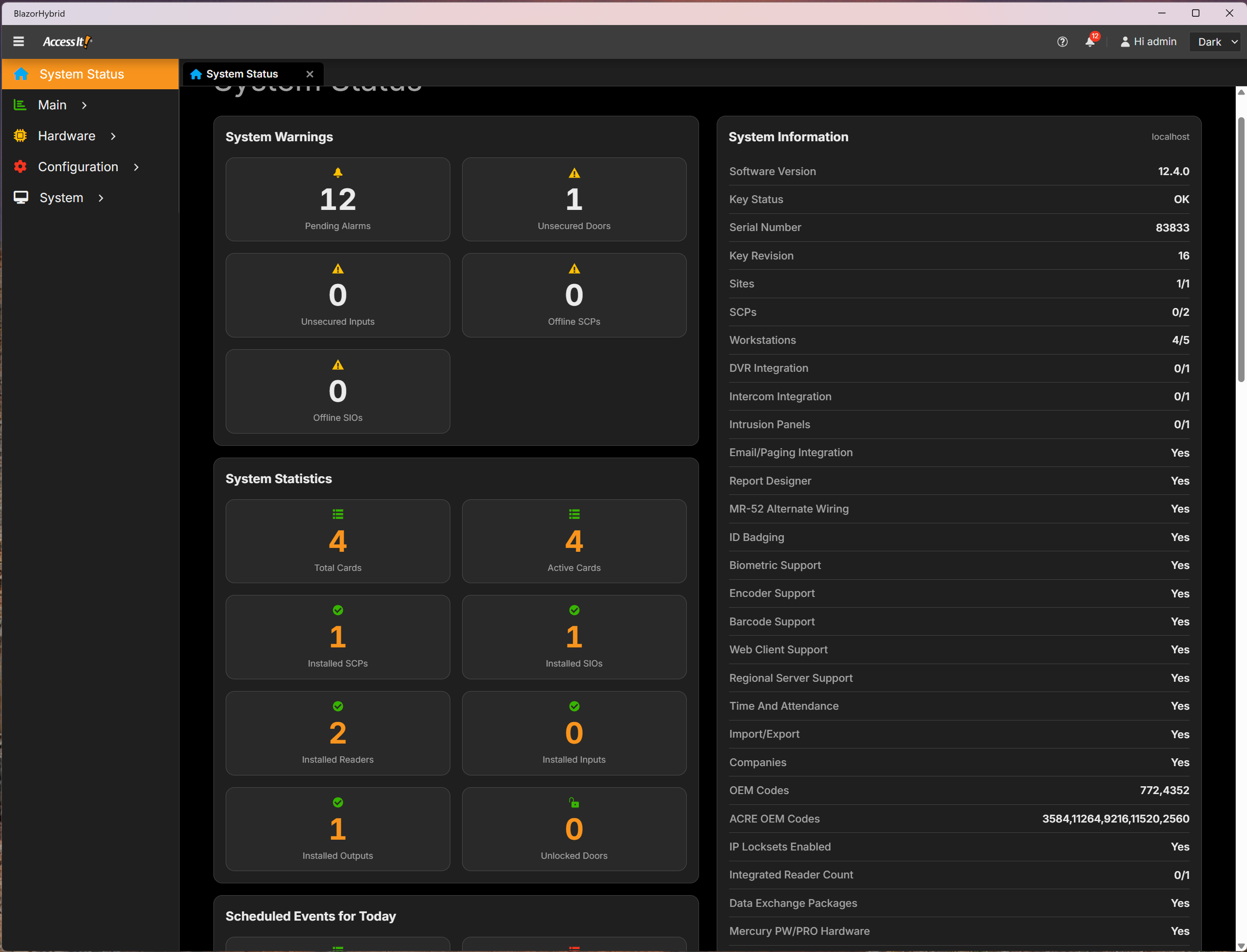
The System Status dashboard gives a real-time view of alarms, unsecured doors, and installed hardware, at a glance. What used to be a plain list of numbers is now a dashboard built for a quick check between other tasks, in either light or dark theme.
Site Lockdown: One Action, Every Door
When every second counts, lockdown is one click away.
From the Macros screen, select Lock Down All Readers, click Execute, and every reader in the building moves into locked mode immediately. In the legacy interface shown above, that command lived in a ribbon toolbar alongside the Alarms panel.
An alarm comes in confirming the lockdown. Acknowledge it, and check the Readers screen: every affected reader now shows Locked, right alongside its location and door status. That confirmation surfaces directly at the top of the modernized Alarms feed, so there's no guessing whether the command went through.
Lockdown scales to exactly what you need: an entire campus, a single building, or specific readers. Run a partial lockdown for just one building, and the rest of your system keeps operating normally.
When you get the all clear, execute Restore All Readers, and access returns to normal.
What Stays the Same
The interface looks different. What's underneath does not.
This is an interface refresh. It doesn't change your hardware, your configuration, or how the system operates behind the screen. Your access levels, your credentials, your existing setup, all of it carries forward.
There's nothing to install and nothing to request. The refresh ships automatically as part of Access It! 13.0. It isn't sold or licensed as a separate product.
If your team already knows Access It!, they already know how to use this version. Same robust product. Modernized experience. Nothing else to relearn.
Consider this a first look. More is on the way! Have questions about what this means for your deployment? Reach out to your Acre representative. Keep an eye out here for more as launch day gets closer.
It's a redesigned interface for Access It!, covering screens like Cardholders, Alarms, Events, System Status, and panel configuration. It's an update to the product you already use, not a new platform.
No. The workflows, onboarding a cardholder, monitoring alarms, running a lockdown, work the same way they always have. The refresh changes how the screens look and feel, not the steps your team follows.
Yes. This is a UX/UI refresh, not a platform change. Same robust product, modernized experience.
No. The refresh ships automatically as part of Access It! 13.0. It isn't sold or licensed as a separate product.
As part of Access It! 13.0, launching September 15, 2026.
It's Access It!, modernized. Same platform, same underlying capabilities, refreshed interface.

.png)